Introduction
Are you burning the midnight oil writing endless code? Struggling to remember API documentation? If these troubles resonate with you, the tool I’m introducing today—Cursor AI Editor—might completely transform your programming experience!
As a seasoned developer who interacts with code daily, I’ve used numerous AI programming tools. However, Cursor truly stands out—it’s not just a simple code completion plugin but a genuine AI partner that can understand your entire project. After using it for three months, my coding efficiency has increased by at least 50%.
Let’s dive into this amazing tool!
What is Cursor?
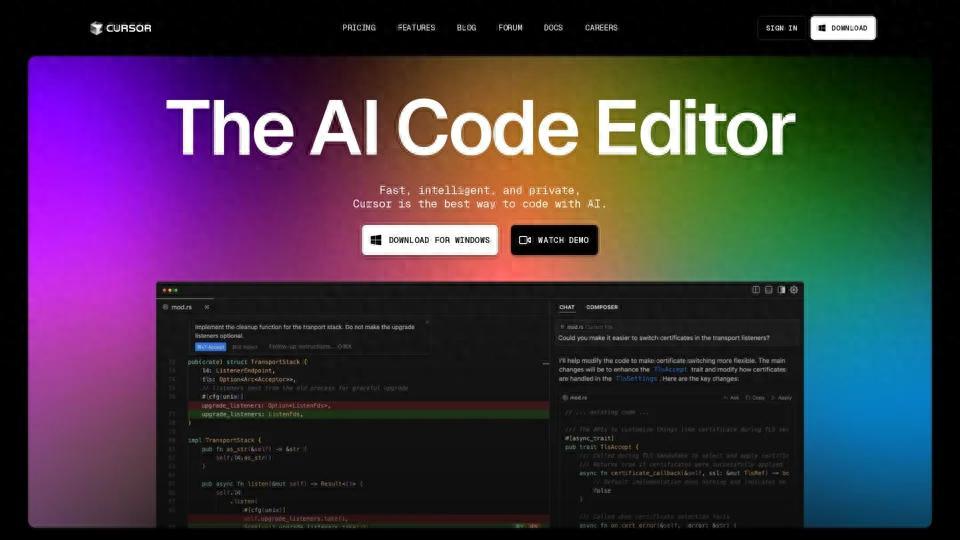
Cursor is an AI-native code editor based on the VS Code engine. It deeply integrates top industry models like GPT-4, Claude 3.5/4.6, and Gemini, making AI capabilities the “first citizen” of the editor rather than an afterthought plugin.
In simple terms, Cursor = Comfort of VS Code + Intelligence of the strongest AI = The coding tool every programmer dreams of!
Three Core Advantages of Cursor
- Natural Language to Code: Describe your needs in Chinese, and the AI generates code directly.
- Real-time AI Assistance: Tab completion delay is <100ms, making it almost imperceptible.
- Project-level Understanding: It comprehends your entire codebase, not just the current file.
Pricing Plans Explained (2026 Version)
Cursor adopts a credit system (upgraded in mid-2025), no longer charging by request count. Instead, you receive a monthly quota of “AI credits,” with higher models consuming credits. Here’s the detailed five-tier pricing system:
| Plan | Monthly Fee | Annual Avg. | Suitable For |
|---|---|---|---|
| Hobby | $0 | Free for experience/learning | |
| Pro | ⭐$20 | $16 | Individual developers |
| Pro+ | $60 | $48 | Heavy AI users |
| Ultra | $200 | $160 | All-day Agent users |
| Teams | $40/person | $32/person | Team collaboration |
| Enterprise | Custom | Custom | Large enterprises |
⚡ Key Billing Rules (Must Read!)
- Auto mode generally does not consume credits—use freely in most scenarios!
- Manually selecting high-end models consumes credits—like Claude Opus 4.6, GPT-5.4, etc.
- Annual payment saves 20%—recommended for long-term use.
- Students get free Pro—.edu email verification grants one year free (worth $240).

Purchasing Notes for Domestic Users
The official website now supports Alipay and UnionPay (available since April 2025)! However, note that some core models may be restricted for access from mainland China IPs (Claude, GPT-5.4, Gemini 3.1). It’s advisable to use network tools for a complete experience.
Six Core Features Explained
1️⃣ Tab Completion — Type to Complete
Smartly predicts multi-line code with a response delay of <100ms, achieving an accuracy rate of 80%+ in daily coding scenarios. Unlimited use in Pro version, especially useful when writing React/Vue components!
2️⃣ Ctrl+K Inline Editing — Edit Where You Point
Select code, press Ctrl+K, input your request, and let the AI modify it. Supports quick edits in a single file, perfect for tasks like “add error handling to this function” or “refactor this code.”
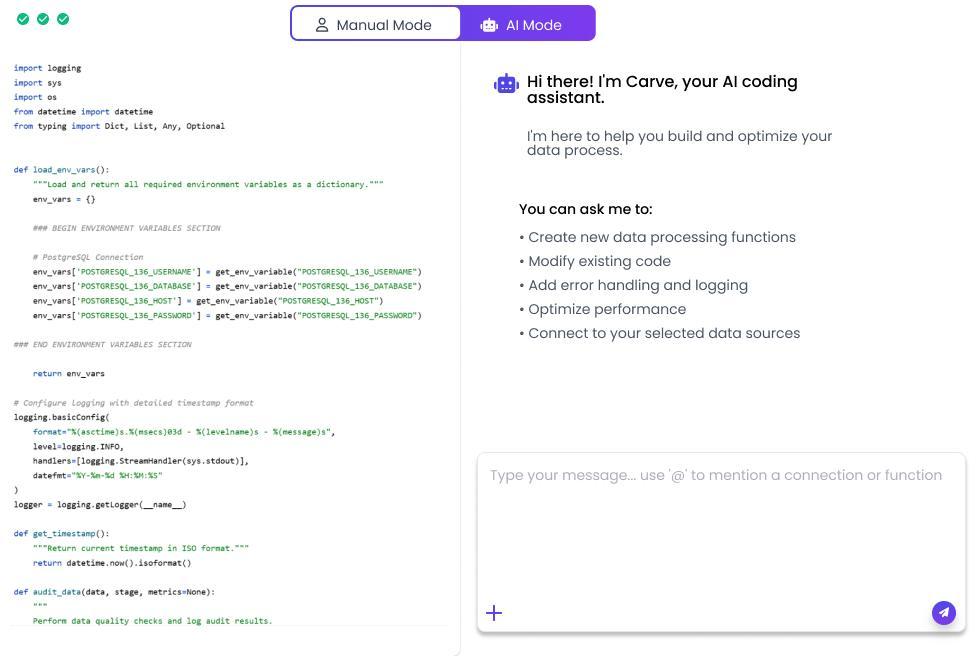
3️⃣ Ctrl+L Global Chat — Project-level Conversations
Refer to files, folders, and code snippets, truly understanding the entire codebase. Suitable for advanced requests like “help me analyze this project’s architecture” or “find potential bugs.”
4️⃣ Composer Multi-file Editing — Generate Multiple Files at Once
Cross-file modifications, generating multiple files at once. Ideal for creating complete functional modules, such as “create a user registration module, including forms, APIs, and database models.”
5️⃣ Agent Mode — AI Executes Tasks Automatically
Automatically performs multi-step tasks, creating files, modifying code, and running commands. Background Agents support continuous background tasks (exclusive to Pro+/Ultra)!
6️⃣ MCP Protocol Extension — Connect Everything
Connects to external services: databases, APIs, file systems. Supports integration with tools like Figma, Notion, Git, making Cursor a true AI workstation.
Detailed Usage Tutorial
Installation and Configuration
- Visit cursor.com to download the installer.
- Register an account (supports email/GitHub/Google login).
- Set language to Chinese: Ctrl+Shift+P → “Configure Display Language” → Chinese (Simplified).
⌨️ Core Shortcut Keys Quick Reference
| Shortcut | Function | Usage Scenario |
|---|---|---|
| Tab | Accept AI completion suggestions | Automatically triggered while coding |
| Ctrl+K | Inline AI editing | Modify after selecting code |
| Ctrl+L | Global chat window | Project-level dialogue analysis |
| Ctrl+I | Composer multi-file editing | Create/modify multiple files |
| @ Symbol | Reference enhanced context | Precisely feed AI information |
@ Symbol Usage Tips (Key!)
The @ symbol is the soul feature of Cursor, enabling AI to accurately understand your needs:
- @file.py — Reference a specific file
- @folder/ — Reference an entire directory
- @web — Enable real-time web search
- @github/user/repo — Connect to GitHub repository
- @docs — Reference project documentation
Custom AI Rules
Make Cursor better understand your coding style!
- Global Rules: Settings → General → Rules for AI
- Project Rules: Create a .cursorrules file in the root directory
- Example Rules: “Always use type hints in Python”, “Use Chinese comments”
Practical Case Demonstrations
Case 1: Quickly Generate Functions
Operation: Ctrl+K → Input “Write a debounce function that supports immediate execution mode” → Accept
Effect: AI generates complete code + comments, ready to use!
Case 2: Project-level Refactoring Analysis
Operation: Ctrl+L → “@src/components Analyze the code in this directory, find duplicate logic, and suggest refactoring plans”
Effect: AI scans the entire project and provides detailed refactoring suggestions and code examples!
Case 3: UI Design Draft to Code
Operation: Drag the design draft image into the chat window → “Generate React component based on this design draft”
Effect: AI recognizes the design and generates corresponding code!
Case 4: Background Agents Automatic Tasks
Operation: Create task → “Automatically check TODO comments in the project and generate a task list”
Effect: Background scans and organizes, notifying you upon completion!

Purchase Recommendations and Money-Saving Tips
Which Plan is Right for You?
- Coding 1-2 hours daily → Pro ($20/month) is sufficient.
- Coding 4-6 hours daily → Pro+ ($60/month) to avoid running out of credits mid-month.
- Full-time AI programming (8h+) → Ultra ($200/month) to unlock maximum credits.
- Team usage → Teams ($40/person/month) for centralized management + SSO.
Money-Saving Tips
- Keep Auto mode as the default (does not consume credits).
- Annual payment saves 20%, offering better value.
- Students apply for student discounts (1 year free Pro, worth $240).
- Integrate OpenRouter, Ollama and other third-party models (free credits).
⚔️ Cursor vs GitHub Copilot
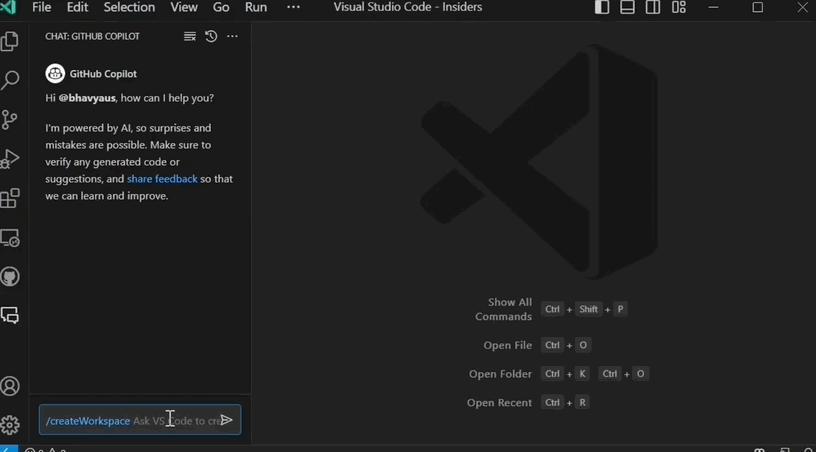
Many people compare Cursor with GitHub Copilot; here’s a comprehensive comparison:
| Feature | Cursor ⭐ | Copilot |
|---|---|---|
| Editor Type | Standalone app (derived from VS Code) | Plugin (supports multiple IDEs) |
| Context Understanding | Project-level | ✅ Current file/small context |
| Chat Interaction | Built-in powerful chat window | ✅ Copilot Chat (newer) |
| Image Input | ✅ Supported | ❌ Not supported |
| Custom Documentation | ✅ Supported | ❌ Not supported |
| Local Models | ✅ Can integrate Ollama, etc. | ❌ Cloud-only |
| Price (Individual) | $20/month | $10/month |
Summary:
If you seek stronger AI capabilities, project-level understanding, and multi-modal interaction (image input), Cursor is the better choice. If you have a limited budget and primarily require simple completions, Copilot offers better value.
Conclusion
Cursor is indeed a revolutionary AI programming tool. It doesn’t merely add an AI plugin to your IDE; it integrates AI capabilities from the ground up. For those who work with code daily, it’s definitely worth trying.
I recommend starting with the free Hobby version to experience the power of Tab completion and Ctrl+K. If you find it useful, consider upgrading to Pro for more advanced features!
With Cursor, embark on a new era of AI programming!
Follow us for more AI tool usage tips!
If you found this article helpful, feel free to share it with your friends!
Comments
Discussion is powered by Giscus (GitHub Discussions). Add
repo,repoID,category, andcategoryIDunder[params.comments.giscus]inhugo.tomlusing the values from the Giscus setup tool.